
Android travel documents
Find and Check Android Downloads Before Travel
Find downloaded travel documents on your Android phone, check the saved copy without a connection, and decide what to share, retain or remove.
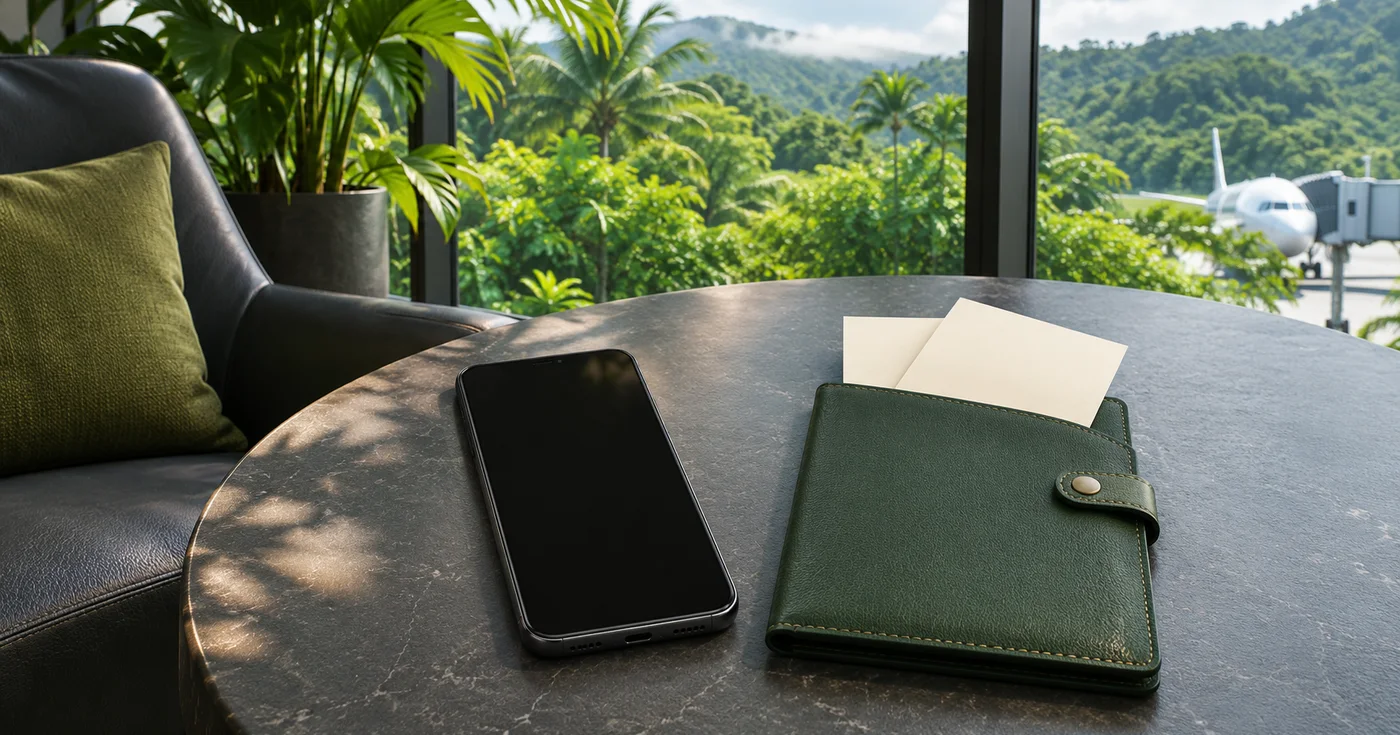
Choose the document you actually need
A booking email is easy to find while the connection is good. A saved document becomes useful when you can locate it quickly and recognise whether it is the current version. Before travelling, make a short list of the files you expect to need: an accommodation confirmation, a meeting agenda, a route note or an issuer-provided travel document. Keep the list specific rather than downloading every attachment in your inbox.
For each item, note who issued it, what journey or task it belongs to, and when it was last checked. Read any issuer instructions about how the document must be presented. A downloaded copy may help you read the details, but it does not establish that a booking is current or that a venue accepts that copy for entry. Keep the issuer's approved access route available as well.
Finish the download from a trusted source
Start from the organisation's known website or the approved message containing the file. The travel login-link checks help when a message unexpectedly asks you to sign in before obtaining a document. Stop if the destination or request is unfamiliar, and confirm it through a contact route you already trust. Do not install an application simply because a supposed document requires one.
Google's Chrome download instructions for Android describe finding downloads through the browser's More menu, with a bottom-address-bar variation on some layouts. Use the Downloads view to check the item you intended to save. If a transfer is still running, allow it to finish on an appropriate connection rather than assuming that a visible filename means the file is ready.
Keep any warning or access error visible long enough to understand it. Do not disable browser protection, bypass a certificate warning or repeatedly change VPN settings just to force an unexpected download through. Resolve the source or access question first.
Find and open the file on your phone
Locate the saved item through the device's file manager as well as the browser. Google's Android file-management guidance identifies the Files app as a usual starting point and notes that manufacturers may provide a different app. Find the appropriate category and open the specific item. Menu labels and available actions can vary, so follow the help for your device when its layout differs.
Check the contents instead of relying on the filename. Confirm the traveller or project, destination, relevant dates and any revision information that the document actually supplies. An older confirmation with a similar name can sit beside a newer one. Use a clear, non-sensitive name where your chosen app permits it, and avoid putting passport details or private booking references into filenames that may appear in a sharing screen.
Write down the route you used to find the file. A note such as “Files app, Downloads, accommodation confirmation” is more useful than relying on whichever browser tab happens to remain open.
Check the saved copy without a connection
Choose a quiet moment when briefly disconnecting will not interrupt a call, navigation or other important task. Close the document, disconnect the phone's network access using its normal controls, and reopen the saved item through the route you recorded. Check the pages or details you expect to read, then restore the connection. This is a practical check of that copy on that phone at that moment.
If it opens a website, requests another sign-in or cannot display the needed content, record that limitation. A bookmark, cloud link, app-managed item and downloaded file can have different access requirements. Keep an alternative approved by the document issuer rather than promising yourself that everything on the phone works offline. Recheck an important file after a meaningful change to the document or the app used to open it.
Share only the intended copy
Before sending a document, choose the recipient, reason and exact file. A local copy and a cloud-sharing link are different handoffs. For a link, the cloud-file sharing permissions guide helps you check the audience and access role. For a nearby transfer, use the Android Quick Share visibility checklist to prepare the receiving arrangement deliberately.
Review what the document contains before opening the sharing options. It may expose other travellers' names, a home address or a booking reference that the recipient does not need. Use the organisation's approved process for sensitive work files. Confirm that the intended person received the intended item without asking them to send private details into a public chat as proof.
Keep a backup and review old copies
Decide how you would recover the document if the phone were unavailable. The Android backup before travel guide explains why the presence of a backup setting should lead to a check of what is actually covered. Keep your recovery plan consistent with the issuer's instructions and any work-data rules. A second copy helps only if you can safely reach and recognise it when needed.
After the journey, review obsolete or unnecessary copies through the app that holds them. Confirm what should be retained before deleting anything, and do not treat removing one local file as proof that shared or cloud copies have disappeared. Keep the remaining document set small enough to understand. A VPN can be part of a network privacy arrangement; it does not choose the correct file, validate a booking or decide who should receive the document.