
Android VPN & travel
Offline Driving Maps on Android: Plan for a Lost Connection
Download a driving area in Google Maps before you travel, check it while parked and save a separate plan for walking or transit.
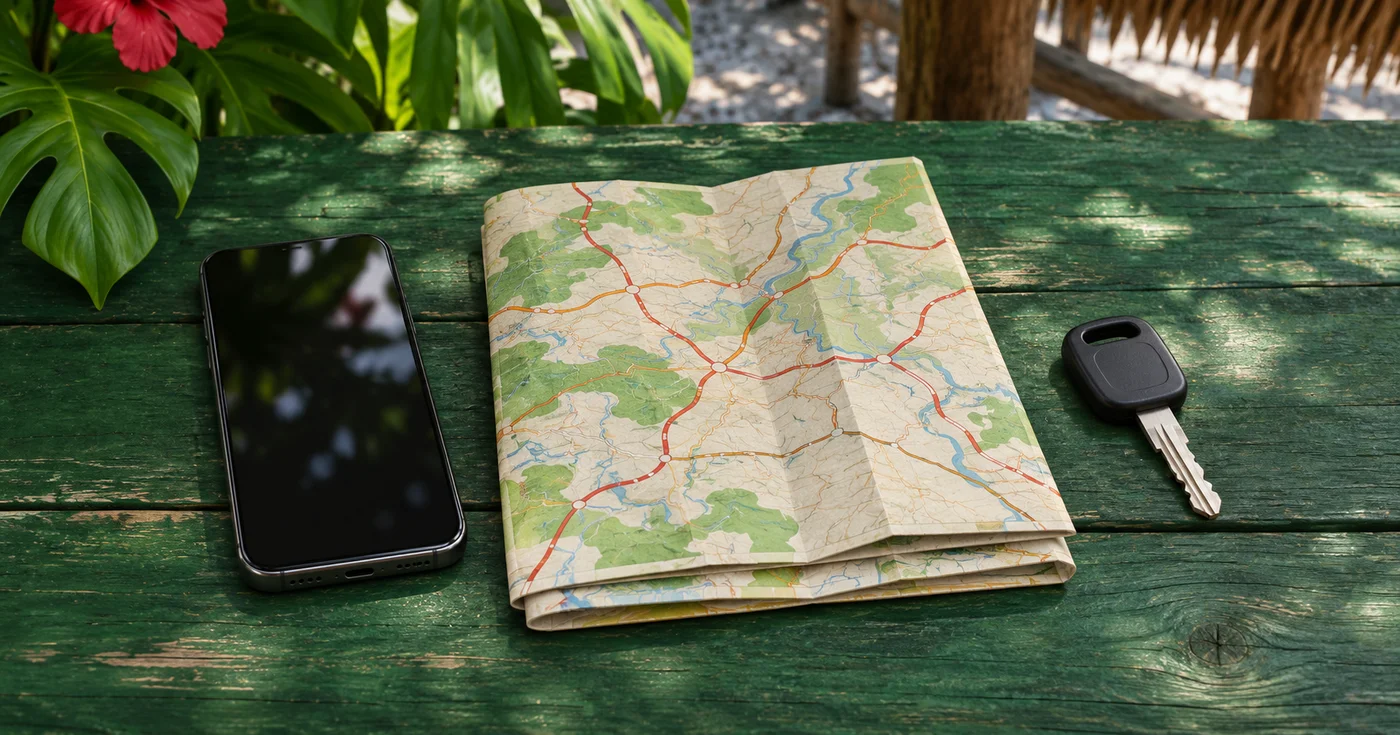
Download the area that covers the whole drive
You leave the airport or ferry terminal, and your travel data stops before you reach the rental pickup or hotel. If you already saved the right area in Google Maps, your Android phone can still provide supported driving directions. Check the map before leaving a reliable connection. Saving the destination name alone won’t download the roads you need to get there.
While online and signed in to Google Maps, open the account menu and choose Offline maps. Choose the option to select your own map and adjust the box to include the places you intend to drive between. Give the map a name you will recognise when it appears in the downloaded list. Google says a driving route must fit within the downloaded map and that offline downloads are unavailable in some areas. If the app won’t offer a download for your destination, arrange another approved navigation option before travel.
Include the rental pickup, the destination and the road between them. Start with the airport branch you booked, not the first branch suggested when you search for the rental company. On a long journey, look at the middle of the route while selecting the area. Add the approach to your lodging and a planned stop. Inspect what is covered before leaving, especially when two towns have similar names or a hotel has more than one entrance.
Check the downloaded map while you are parked
Open the offline maps list and confirm that the area appears on the phone you will carry. Check its update status before the trip because downloaded maps expire. Update or download the area over a dependable connection when needed. If the file is large and your plan is limited, use trusted Wi-Fi and wait for the download to finish. Our public Wi-Fi travel checklist can help you decide where to prepare the phone.
Before you drive, check that Maps can open the intended destination and show the planned driving route without an internet connection. You can make the check while parked and with no active call, using the phone’s ordinary connectivity controls if your device policy allows it. Restore the connection you normally use afterward. Keep any required VPN or work controls in place. If the device is managed and the check is affected by its policy, ask your administrator before depending on the result.
Keep a short route note for what the map lacks
Google Maps does not provide walking, cycling or public transport directions in offline mode. Driving directions offline also lack live traffic and alternate routes. If you will park and continue on foot, save a separate note of the parking entrance, street address and meeting point. For a bus or train leg, save the operator’s official instructions or a copy of the itinerary where you can open it offline. Include a date so you can tell which version you have.
For example, a drive to a ferry terminal may end at a car park several minutes from the passenger entrance. Save both locations and the operator’s instructions for walking between them. If the ferry is part of a longer trip, keep the departure time and operator’s contact separate from any ticket code. A map download cannot confirm a sailing delay or tell you which entrance is open today.
Write down the destination’s street address, the entrance you expect to use and one phone number you can reach if the route changes. Keep that note separate from booking codes or account details. If you travel often, add a check for downloaded navigation and a route note to your digital nomad connectivity plan.
Separate map, location and connection problems
A visible map and an uncertain blue dot point to different things. The map can be stored on the phone while Maps is still trying to locate the device. If the location is missing or looks wrong, pull over somewhere safe and check the phone’s location settings. Changing VPN servers is not a substitute for a location check. The guide to VPN IP location and device location explains why those signals can differ.
If a service that needs internet still will not load when you stop, check which connection the phone is actually using. The Android travel eSIM data guide explains how to verify the selected SIM. If you are trying guest Wi-Fi, use the Android guest Wi-Fi sign-in guide to check for a venue prompt. Keep the offline map for the driving leg and resolve the connection before you need a live service again.