
Android VPN setup
How to Move Your VPN to a New Android Phone
Switch Android phones without losing VPN access. Check recovery and device approval, reconnect on the new phone and retire the old one.
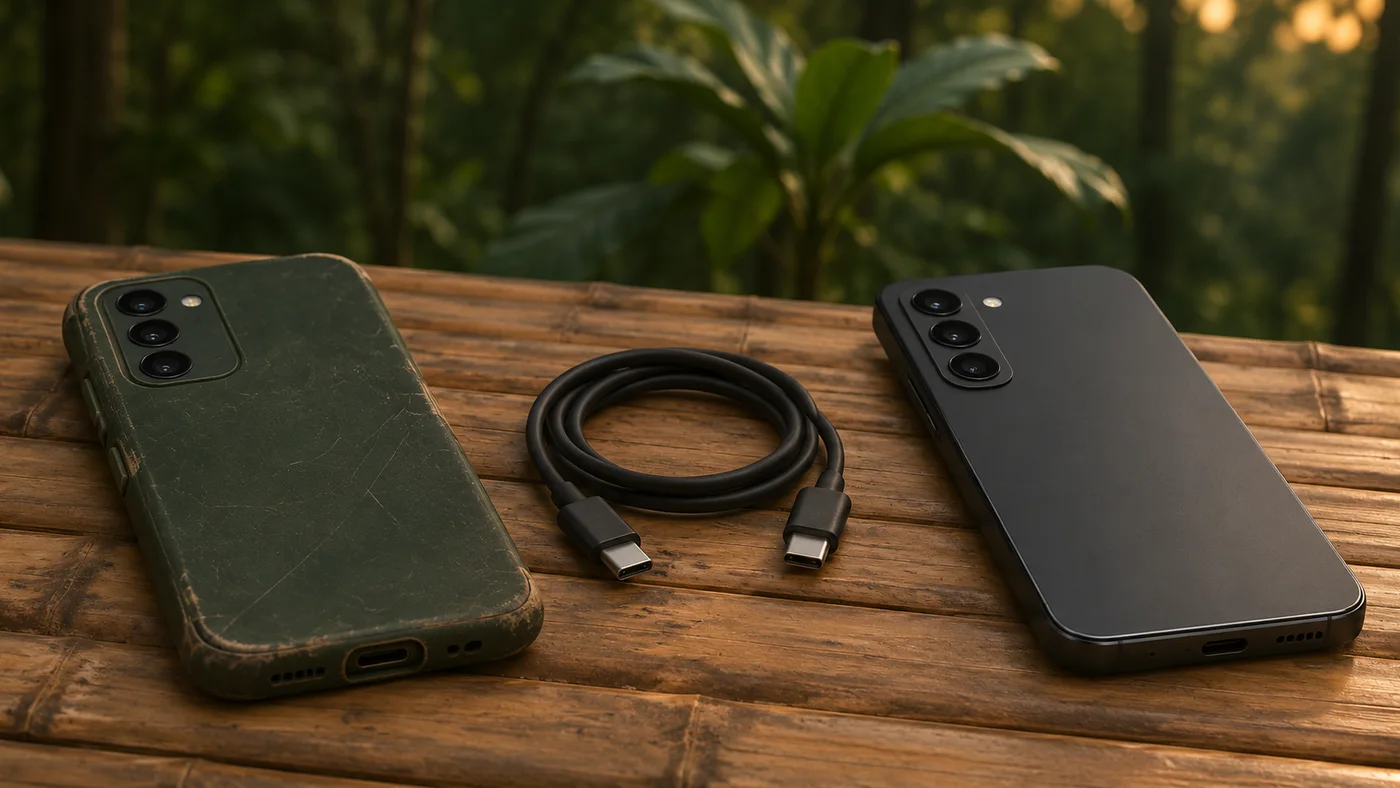
Check your account before retiring the old phone
If you still have the old phone, keep it available until you can use the new one. Open the VPN there and identify the account, plan or organisation responsible for access. Confirm that you can reach the email address or sign-in method connected to it. If you normally approve a sign-in prompt on the old phone, arrange a second approved way to sign in before handing the phone over. Use the passkey and account recovery checklist to verify that part of the move.
Check how your provider handles a replacement device. A plan with one device slot may require the provider to release the old device or guide you through a replacement. Ask in advance if the plan uses an activation code or another device approval. For JungleVPN, consult the current JungleVPN Android release page and contact the team to confirm what is available for your device. Have the device model and Android version ready. Keep passwords, private keys and activation codes out of support messages.
Open the VPN app after Android finishes copying
Let the normal Android transfer finish, then check what arrived. Google explains that apps vary in which settings and data they can back up and restore. Read its Android backup and restore guide for the supported process. An app icon on the new home screen gives you a place to start. Open it and check whether it asks you to sign in, set up a VPN profile or contact an administrator.
If the app did not arrive, use the source your provider or organisation names for the new phone. For a provider that distributes an APK directly, review the Android VPN APK verification checklist before installing. If the old phone is missing or damaged, start with the provider’s account recovery or device replacement instructions. A support request can include the old device model and whether it is still in your possession, without including any credentials.
Set up the VPN where you need it
On a work phone or a personal phone with a Work Profile, ask IT when to enrol the new device and where to find the approved app. If both profiles show the same app name, use the version your administrator identifies. The Android Work Profile VPN guide explains how to recognise the work app and understand which profile the VPN serves.
On a personal phone, open the approved app and follow its setup instructions. Android may show a system request when the app needs permission to create a VPN connection. Check the app name before accepting. The Android VPN connection permission guide explains what to look for in that prompt. You can search Settings for VPN if your phone’s menu names differ. Google describes Android’s VPN connection and profile settings.
Check one real task on the new phone
Start from a trusted network that already works. Connect in the approved VPN app and check the app status and the VPN indicator on the phone. Then open a familiar site or an authorised work app in the profile you actually use. If a work app is the reason you need the VPN, complete a normal task such as opening the schedule you are allowed to see. Write down the app, profile, network and result so you can describe what happened if access fails.
If the VPN reports that it is connected and the work app still asks for access, capture the exact app message for the administrator. If the VPN itself reports a device limit or a fresh approval requirement, follow the provider’s replacement procedure. Set aside time for this step before travelling or returning the old phone.
Finish the handover on the old phone
Once the new phone works and you have confirmed account recovery, follow the provider’s instructions for removing the old device. For a personal phone, Android’s VPN settings let you disconnect or forget a saved VPN. Follow the provider’s separate instructions for retiring the device from the account if it maintains a device list. For a managed phone, arrange the return or removal with IT so the administrator can apply the organisation’s process.
If access still fails on the new phone, share the Android version, app version, whether it is a personal or work profile and the step where you stopped. Ask the provider or IT team to confirm what is needed before you erase the old phone or sign it out of the account you use for recovery.