
Windows call troubleshooting
Windows Microphone Not Working With a VPN? What to Check
Check microphone selection, Windows permissions and app access before investigating a call connection problem.
Identify what stops working
Your Windows laptop joins a call with a VPN connected, but the other person cannot hear you. Before changing a network setting, write down the exact symptom. Can you hear the other person? Does the call stay connected? Does the calling app show the microphone you intended to use? An absent input, muted headset and interrupted call need different checks.
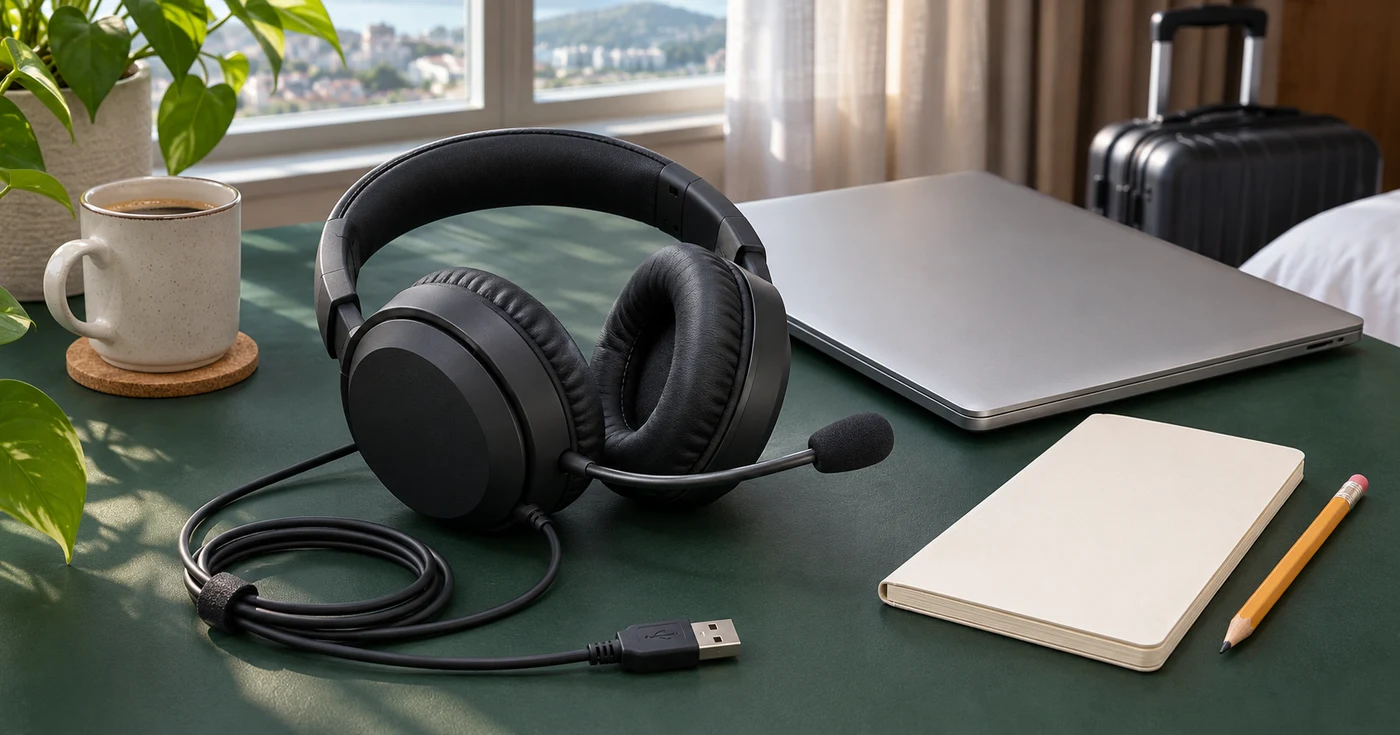
Begin with the equipment in front of you. Confirm that the headset is connected, inspect its physical mute control and check the app’s own mute state. If you moved from the laptop microphone to a USB headset, compare the selected device names in Windows and the app. A familiar speaker output does not establish that the intended microphone is selected.
Microsoft’s microphone troubleshooting guidance includes connection, mute and input-device checks. In Windows 11, open Settings, then System and Sound, and inspect Input. Use the available microphone check with a neutral phrase. Keep confidential meeting content out of recordings made while diagnosing a problem, and remove any sample you no longer need.
Check Windows and app access
If the device is available but the app cannot use it, inspect Settings, Privacy & security, Microphone. Review Microphone access and the app-access controls. Enable access only where it is appropriate for the app you intend to use. A work-managed computer may have settings controlled by its administrator; ask that administrator about a blocked control rather than trying to work around it.
Microsoft’s camera and microphone privacy explanation distinguishes Microsoft Store app permissions from desktop-app access. The desktop setting is broader than an individual Store-app toggle. It also explains that websites in Microsoft Edge require their own permission. A Windows permission and a website permission are separate checks; review the established meeting site rather than approving an unfamiliar prompt.
After an appropriate change, return to the same app and selected microphone. Change one thing at a time and note the result. Avoid enabling unrelated camera access, adding extensions or granting remote control just because someone says it will fix sound. If you are showing your settings on a call, prepare the visible area with the Windows screen-sharing privacy checklist before exposing account names or other open windows.
Separate microphone input from call delivery
A microphone that responds in Windows gives you a useful local observation. It does not prove that a particular calling app has the correct input or that the other person receives your audio. Return to the app’s audio settings, verify its selected device and use its supported audio-check feature if available. Keep the app, headset and destination consistent while comparing results.
If the entire call reconnects, web pages also stop loading or the VPN reports an interruption, record that separately from microphone access. The VPN connection recovery checklist helps organise a connection problem without mixing it with audio permissions. Do not repeatedly alter both sets of settings: that makes it difficult to tell which change affected the result.
For a work meeting, follow your organisation’s network requirements. The work VPN and personal VPN guide explains why those arrangements need separate treatment. Ask the responsible support team whether a particular comparison is permitted. Do not disconnect a required work connection or weaken a firewall simply to obtain a quick result before a meeting.
Record the result and close the check
Prepare a short outcome note: Windows detected the named microphone; the app did or did not show input; the call stayed connected or displayed a specific error. Include the approximate time and whether the problem began after changing headsets, updating the app or moving networks. Report observations without declaring the VPN responsible merely because it was connected.
Use the support-report privacy checklist before sending screenshots or logs. Crop out meeting links, participant information and account details that are irrelevant to the question. Never include a password, activation secret or private conversation recording. Send the report through the provider’s established support route, and ask what additional evidence is actually needed.
Once the intended microphone works in the app, confirm the result with the other participant and return to the agreed meeting setup. Review temporary permissions and close diagnostic windows. Keep the useful outcome note so you can recognise a recurring device or connection pattern. For help with JungleVPN access, contact the team through the support page and include only the information needed for your enquiry.