
Windows privacy
Windows Nearby Sharing: Choose Who Can Send You Files
Choose who can send you files in Windows 11, verify the receiving PC and keep guest Wi-Fi set to Public.
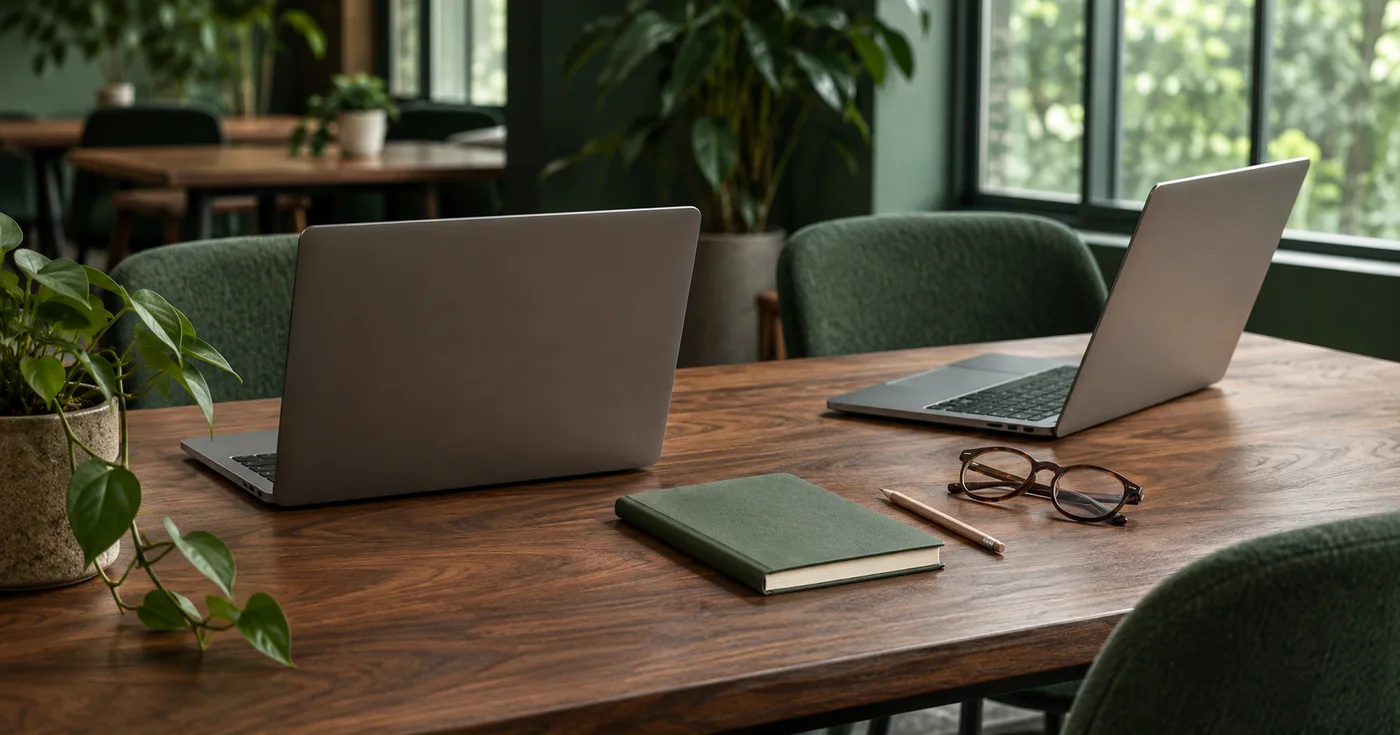
Choose who can share before you open File Explorer
Two laptops are on the table and a colleague needs one file. A familiar-looking computer name appears in the Windows share menu. Before selecting it, ask which laptop should receive the file, what name Windows shows for it and who is expecting the prompt. In a coworking room or hotel meeting space, similar names give you very little to go on.
On each Windows 11 PC, open Settings → System → Nearby sharing. If you own both PCs and sign in to both with the same Microsoft account, choose My devices only. A transfer to another person's PC may require Everyone nearby. Microsoft says the broader setting makes your PC name and Bluetooth MAC address available to other nearby devices. Enable it for an agreed handoff and turn Nearby sharing off again when you are finished.
Nearby sharing is a Windows feature with its own audience settings. A VPN server can change the network address that websites see, while the Nearby sharing setting controls which nearby devices can participate. Read what a VPN can and cannot hide if you are deciding which privacy controls apply to a local transfer.
Match the two PCs and the expected file
On the receiving PC, read its device name in Settings → System → About. Tell the sender which name to select and agree on the filename. If two machines advertise similar names, wait until you can identify the right one. A recognizable name is helpful for matching, and confirmation from the person at the other keyboard matters more.
Choose a receiving folder whose contents you understand. Windows lets you change the save location under Nearby sharing settings. For a personal file, that might be a local folder you can inspect without looking through older downloads. On a managed laptop, use the approved location and transfer method. If the folder syncs elsewhere, review who can access it before saving sensitive material there. Our guide to checking cloud file sharing permissions explains how the audience can change when you switch to a shared link.
Start with a small harmless file. On the sending PC, select the file in File Explorer, choose Share and select the confirmed PC. On the receiving PC, check the notification before saving and confirm the file arrived in the chosen folder. Check the name and size against what the sender expects. If an unexpected prompt appears, leave it unopened and confirm directly with the person who should be sending it.
Keep the public network profile in a shared space
Microsoft documents Wi-Fi sharing when a current Windows 11 sending PC and the receiving Windows PC are on the same private Wi-Fi network. Nearby sharing also supports Bluetooth on compatible PCs. A room can contain several networks with similar names, and joining the same guest network does not establish that the Wi-Fi transfer path will work. Keep a guest network set to Public. Use a permitted Bluetooth transfer for a small file if it is available, or choose an approved alternative when the transfer is slow or unavailable.
The Windows Public and Private Wi-Fi guide explains what changing that profile does to discovery. If this is a company computer, follow the team’s work VPN and travel connectivity policy guidance and keep the required VPN and security settings in place. For a large or restricted file, a company-managed transfer route may be the easier way to meet the deadline.
Check the receiving PC when the prompt is missing
If the sender is waiting, start with the receiving screen. Open notifications in case the banner was missed. Check that both PCs have Nearby sharing enabled and Bluetooth turned on. With My devices only, verify the same Microsoft account on both PCs. If the file stops halfway, keep the computers close, powered and awake for a fresh attempt. Microsoft’s troubleshooting guide includes a Bluetooth Low Energy compatibility check if the option is missing entirely.
When you contact support, report whether the recipient appeared in the share list, whether the notification reached the receiving PC and whether the file began to transfer. Record the Windows version, the selected receiving scope and whether the space was using guest Wi-Fi. Keep private filenames and account details out of screenshots. This privacy checklist for a VPN support report is a practical starting point if your managed connection is also under investigation.
After the transfer, verify the actual destination folder and switch off the temporary receiving setting. If the work continues in a different room or on another laptop, match the recipient again before you send.