
Windows camera privacy
Windows Camera Not Working Before a Travel Call? What to Check
Check the camera, Windows 11 privacy controls and the intended meeting app before treating a missing travel-call image as a VPN problem.
Identify which part of the call is failing
You join a meeting from a travel laptop and the camera image is missing. Before changing the network, describe what you can observe: the call's video control is off, the app cannot find a camera, the picture is black, or other people cannot see an image that appears locally. Keep the exact message and the name of the app or website. These are different starting points for a useful check.
Separate the camera from the microphone and from screen sharing. If people cannot hear you, the Windows microphone call checklist addresses the audio path. If the meeting itself will not connect, record that separately. A working microphone does not establish that video permission is correct, and a connected VPN indicator does not identify the camera selected by the meeting service.
Check the camera and its physical controls
Look at the equipment you intend to use. Microsoft's Windows camera troubleshooting guide identifies external-camera connections and physical camera switches or shutters as useful checks. Follow your device manufacturer's instructions for the particular control. Do not assume a key or slider has the same meaning on every laptop.
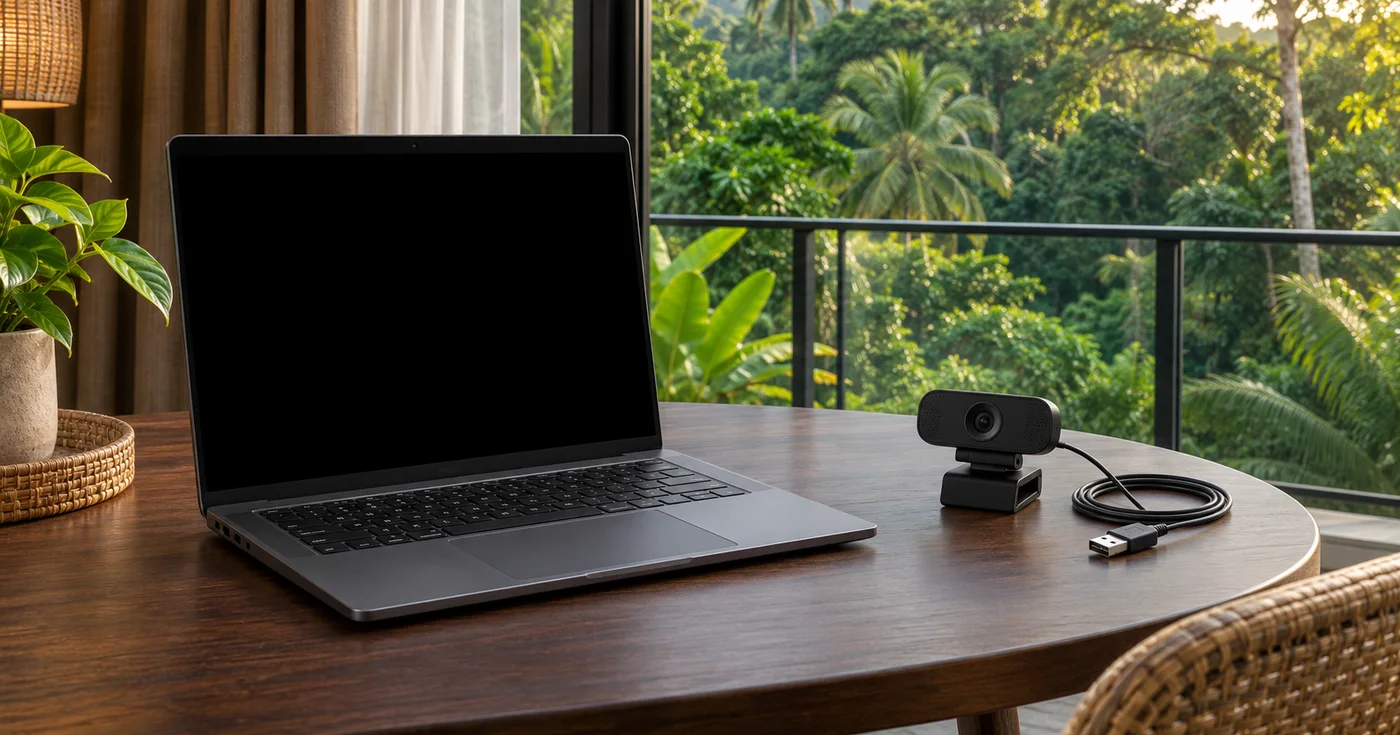
For an external camera, check its intended connection and any adapter you are using. Keep the arrangement simple enough to describe to support. If you move a cable or change a port, note that one change before trying the camera again. Avoid introducing an unfamiliar driver utility from a search advertisement during an urgent call.
Microsoft also recommends checking the camera in the Windows Camera app to help distinguish an app-specific problem. Use a private setting for that observation and avoid capturing material you do not need. Close the Camera app afterwards before returning to the meeting. Record whether the same symptom appeared there rather than turning one successful view into a claim about every calling service.
Review Windows 11 camera access deliberately
Microsoft's camera and privacy guidance gives the Windows 11 route: Start, Settings, Privacy & security, Camera. Review Camera access, Let apps access your camera and the intended Microsoft Store app's control. For desktop apps, the separate Let desktop apps access your camera setting is broader; Windows does not provide individual desktop-app toggles through that control.
Decide which access your intended task actually needs. Do not enable a long list of unrelated apps simply because the meeting is about to start. If a control is managed or cannot be changed, ask the device administrator through the normal support route. Keep the restriction in the handoff note instead of trying to bypass it.
Microsoft documents exceptions and limits to these privacy settings. Treat the page as a set of controls to understand, not a complete audit of every possible camera user. Preserve the organisation's device policy and use only the software and account arrangement approved for the call.
Return to the intended meeting app or website
Open the approved meeting route and confirm that you are in the intended account and organisation. The Edge profile and work-link guide is useful for a browser meeting because it separates the browser window from the account shown by the destination service. Do not send a private invitation into a public conversation while asking which account should use it.
Review the camera selected in the calling app and whether its own video control is enabled. For Microsoft Edge, Microsoft's privacy guidance also explains that a website needs its own camera permission even when browser access is enabled. Grant access only to the verified site you intend to use, and follow that browser's current help if an earlier permission decision needs review.
Repeat the original observation after one deliberate change. If the camera works in Windows but the meeting still reports a problem, retain both results. They make a more useful support question than “video is broken,” without proving a cause you have not established.
Prepare what the camera will show
Before enabling video in the actual meeting, look at the space behind and beside you. Move private papers, another person's belongings or other material that does not belong in the call. Check the position you will actually use rather than assuming that a familiar room or laptop angle gives the same view as before.
If the conversation also needs a presentation, prepare that separately using the Windows screen-sharing privacy checklist. Camera video and a shared desktop expose different parts of the workspace. Decide what participants need to see, verify the intended sharing surface and keep unrelated client work outside it. A clear camera image is not evidence that a presentation window is appropriate to share.
Leave a clear result and next step
If the issue remains, record the camera type, Windows version, calling app or browser, exact symptom and the checks you completed. Include whether the Windows Camera app behaved differently. Send the note through the agreed private support channel, with unnecessary account, invitation and personal details removed. Ask who owns the next action before changing more settings.
Keep network troubleshooting within the organisation's access rules. The work VPN and personal VPN travel guide explains why those arrangements should not be substituted casually. A VPN does not open a physical shutter, choose a camera or grant a website permission. After the call, close the app and review any temporary camera access through the appropriate controls, preserving the setup you still need and understand.